 4.8/5
4.8/5



How to disable the EB Locator Card Pro
This article is related to the EB Locator Card Pro and Google’s Find My Device app.
The EB Locator Card Pro can be disabled to stop it from sharing its location. Once disabled, it will no longer report to Google’s Find My Device network and the owner will no longer receive updates on its current location.
If you receive a message on your Android device that a EB Locator Card Pro has been detected near you and you are not familiar with this device, you can make the EB Locator Card Pro ring through the system notification you have received. After locating the item, use the steps described below to disable it. The owner will no longer receive updates on the location of this EB Locator Card Pro and it will no longer trigger unknown-tracker alerts.
Disable by using the button
EB Locator Card Pro can be manually turned off using the built-in button.
- Locate the small button on the tracker.
- Press the button 5 times quickly in a row.
- The EB Locator Card Pro will play 4 confirmation tones.
- After these tones, the EB Locator Card Pro is powered off.
When the EB Locator Card Pro is disabled:
- It no longer broadcasts any signals
- It stops reporting its location to Google’s Find My Device network
- It cannot be found or updated by its owner
- It does not trigger unknown-tracker safety alerts anymore
Disable by draining the battery
If the button cannot be accessed, the EB Locator Card Pro can also be disabled by stopping its power supply.
- Do not recharge the EB Locator Card Pro.
- Once the internal battery is fully discharged, the device turns off automatically.
- When the battery is empty, the EB Locator Card Pro will no longer appear in Find My Device and will stop sending any signals.
Note: The EB Locator Card Pro is a sealed device. The battery cannot be removed manually and the device cannot be opened without causing permanent damage.
How to re-enable the EB Locator Card Pro
You can re-enable the EB Locator Card Pro by turning it back on or recharging it.
Press the button
- Press the button on the EB Locator Card Pro once.
- The device will play a confirmation tone indicating that it is turned on again.
- You may now pair it again with the Find My Device network.
Recharge the EB Locator Card Pro
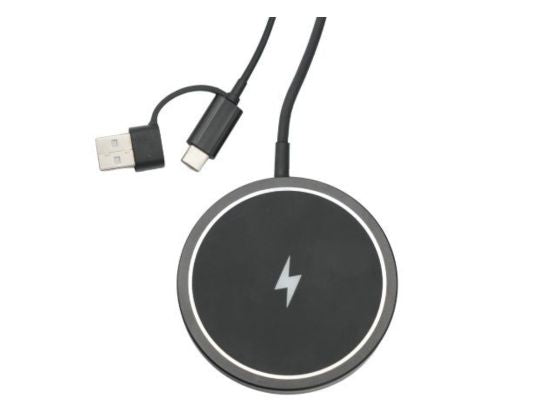
- Place the EB Locator Card Pro on a wireless charging pad (Qi-compatible).
- Wait until the card begins charging.
- Once it has power, it will reactivate and can be added back to the Find My Device app.